Point a gauge needle at a process value
Beginner · 10 min · Gauge
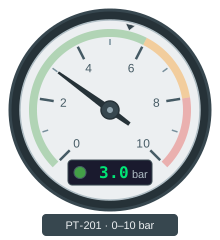
NeedleAngle = -54 ValueText = 3.0 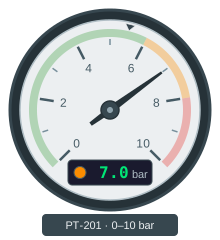
NeedleAngle = 54 ValueText = 7.0 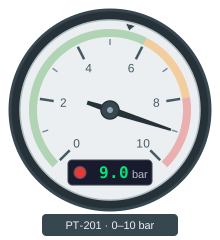
NeedleAngle = 108 ValueText = 9.0
The problem
Gauges get faked. The usual approach is a picture of a dial with a numeric field on top, because a needle that actually turns needs a rotation dynamic with a pivot, and the pivot has to be right or the needle wobbles instead of sweeping. So the needle stays still and the operator reads a number off a picture of a gauge, which is the worst of both.
The other trap is scaling. It is tempting to put the engineering range into the graphic — 0 to 10 bar becomes 0 to 270 degrees — and then the widget only fits one instrument. The next gauge is 0–16 bar and you copy the file.
What you need
A gauge graphic whose needle is its own element, drawn pointing straight up from the pivot — that is how the sample below is built, so zero degrees is twelve o’clock and the angle reads the way you would describe it out loud.
From the PLC you need the needle angle as a number, an alarm state, and the value as text.
| Parameter | Type | What it does |
|---|---|---|
| NeedleAngle | number | Needle angle in degrees. 0 is straight up; negative swings anti-clockwise. |
| AlarmState | number | Alarm state: 0 normal, 1 warning, 2 alarm. |
| ValueText | string | The value as it should appear in the digital readout. |
Build it
1. Turn the needle
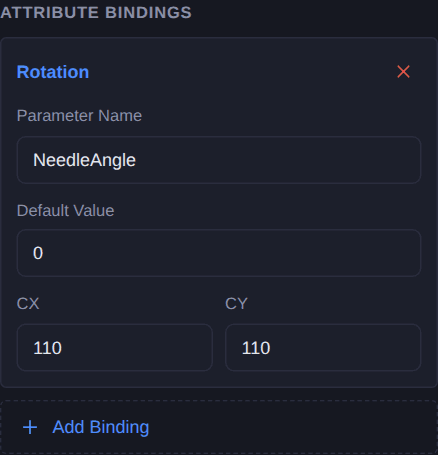
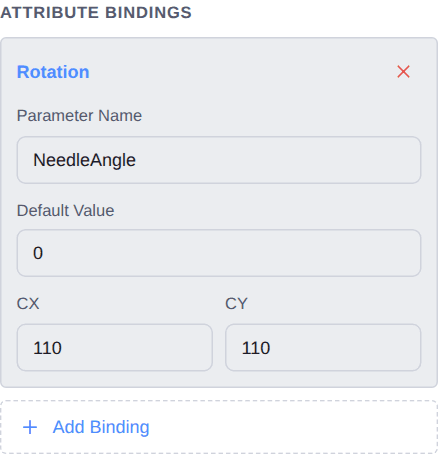
Select the needle and add a Rotation binding named
NeedleAngle. The editor fills the rotation centre in from the shape’s bounding box — check that it lands on the pivot at the middle of the face, because a centre a few units out makes the needle orbit rather than turn.The parameter is an angle, not a pressure. That is deliberate, and it is what makes the widget fit the next gauge as well as this one.
2. Colour the indicator from the state number
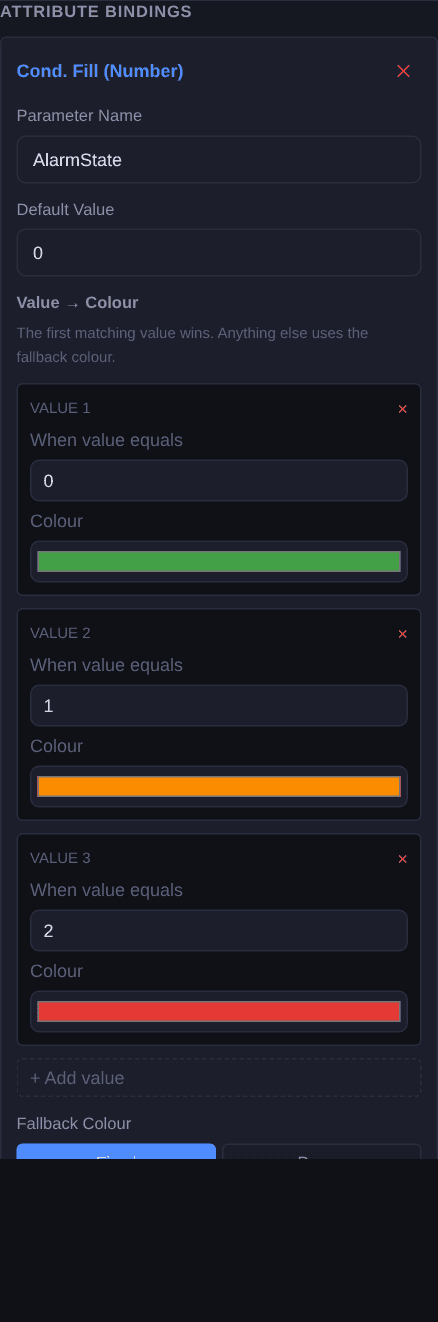
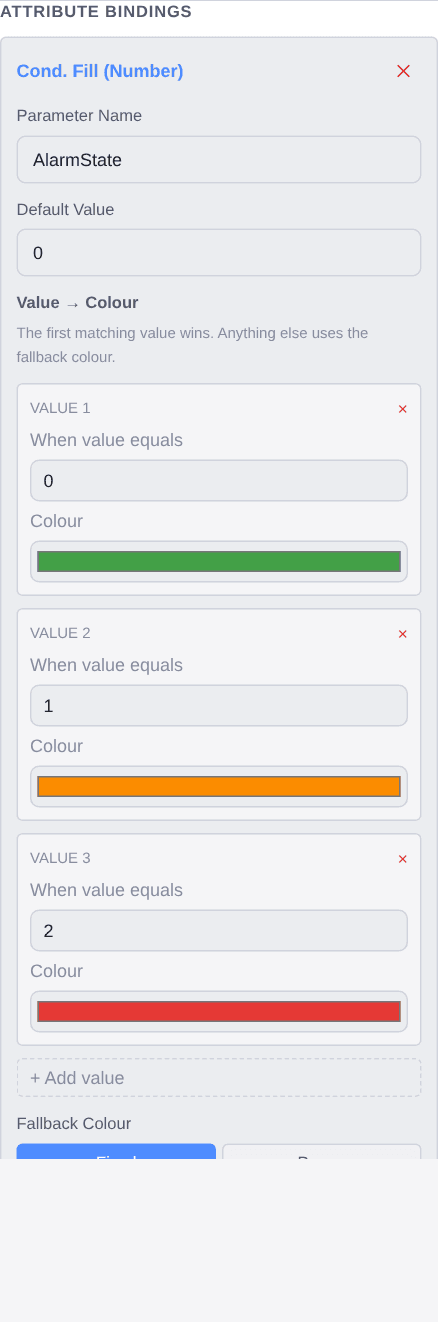
Select the alarm indicator and add a Cond. Fill (Number) binding named
AlarmState, with a row per value: 0 green, 1 amber, 2 red.One integer carrying a state is the shape a PLC usually publishes, and it has a property separate bits do not: the states are mutually exclusive by construction, so there is no combination to think about.
3. Add the digital value
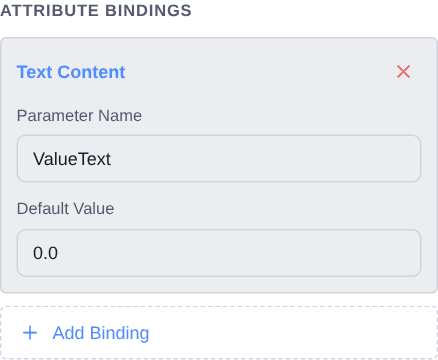
Select the digital readout and add a Text Content binding named
ValueText. The needle is for the glance; the number is for when someone needs the actual reading, and a gauge that only has one of the two is half a gauge.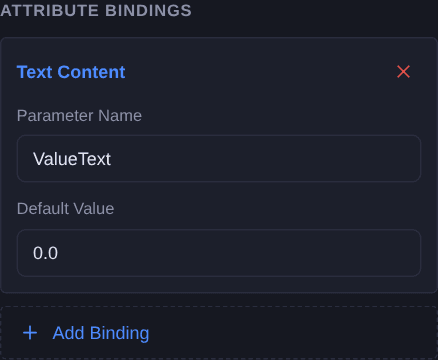
Check it
Open Simulate and sweep NeedleAngle from −135 to 135. The needle should turn about its pivot without the tip wandering off the arc — if it traces a circle rather than sweeping, the rotation centre is wrong.
Then step AlarmState through 0, 1, 2 and past the end. The value with no row of its own falls back to the fallback colour, which is what tells you a state you did not plan for is showing rather than quietly looking normal.
Simulate needs a free account. Everything up to this point does not.
Variations
- Move the setpoint marker. The small triangle on the scale is a second thing that could rotate — another Rotation binding on the same pivot puts the setpoint on the dial next to the reading.
- Colours from the faceplate. Switch any row from Fixed to Param and the colour becomes a parameter, so a project can set its own alarm palette once rather than per graphic.
- Bits instead of a number. If your alarm logic publishes separate warning and alarm bits, use Cond. Fill (Multi-Bool) instead and put the more severe one first.
Questions
- Why is the parameter an angle rather than the process value?
- Because the range belongs to the instrument, not the graphic. Take an angle and the same widget fits a 0-10 bar gauge and a 0-16 bar one; bake the range in and you have made a graphic that fits exactly one instrument.
- How do I convert my value to an angle?
- Wherever the tag is already being scaled. For a full-scale sweep of 270 degrees centred on twelve o'clock, angle = value / range * 270 - 135.
- The needle orbits instead of turning. What is wrong?
- The rotation centre is not on the pivot. The editor derives it from the element's bounding box, which is right for a needle drawn symmetrically about its hub; if yours is drawn off-centre, type the pivot coordinates in yourself.
- What happens at a state number I did not give a row?
- The fallback colour applies. That is worth setting to something obviously wrong rather than to the normal colour, so an unexpected state announces itself instead of looking healthy.