Show a conveyor running forwards or in reverse
Beginner · 9 min · Conveyor
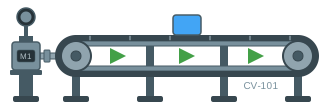
Running = false Reverse = false 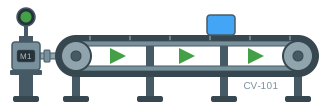
Running = true ProductOffset = 34 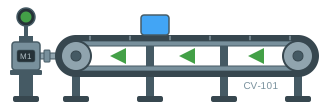
Reverse = true ProductOffset = -32
The problem
Two sets of arrows means two sets of arrows to move when the belt gets longer, two to recolour when the palette changes, and two visibility dynamics that can both be false at once or both true. The failure is quiet: a screen showing no arrows at all, or arrows in both directions, and neither looks broken enough for anyone to report it.
It is also easy to conflate running with direction. They are separate facts — a stopped belt still has a direction it will go when it starts — and a graphic that mixes them cannot show a stopped reverse conveyor at all.
What you need
A conveyor graphic with the direction arrows as one group, a run lamp, and at least one piece of product on the belt — the example below uses the conveyor from the sample set. The arrows are drawn pointing forward, so the graphic as drawn already reads as forward.
From the PLC you need the run feedback and a direction bit, plus a position for the product.
| Parameter | Type | What it does |
|---|---|---|
| Reverse | boolean | Direction. False is forward; true mirrors the arrows. |
| Running | boolean | Run feedback. True when the belt is actually moving. |
| ProductOffset | number | How far along the belt the product sits, in drawing units. |
Build it
1. Mirror the arrows from the direction bit
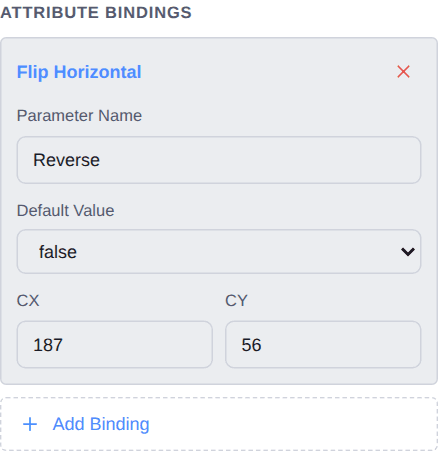
Select the arrow group and add a Flip Horizontal binding named
Reverse. The editor fills in the flip centre from the group’s bounding box, which is what keeps the arrows in place while they turn round rather than jumping sideways.One set of arrows, one bit, and the two directions can never disagree — because there is only one thing to disagree with.
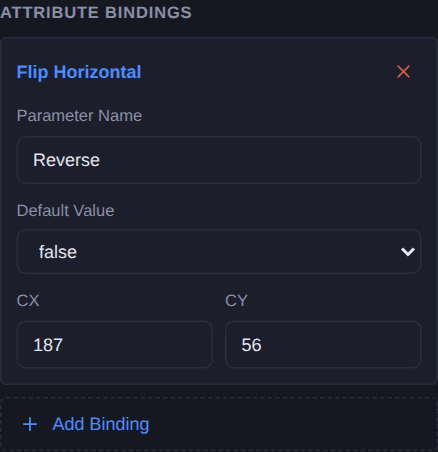
2. Colour the run lamp
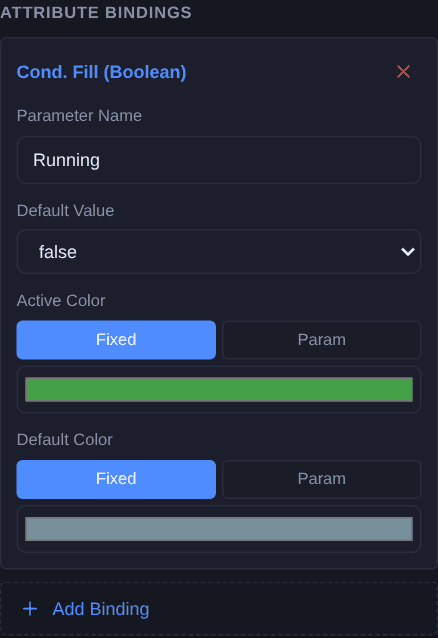
Select the status lamp and add a Cond. Fill (Boolean) binding named
Running— green when running, grey when not.Keeping this separate from the direction is what lets the widget show a stopped belt that will run in reverse when it starts, which is a real state and one an operator about to press a button cares about.
3. Slide the product along the belt
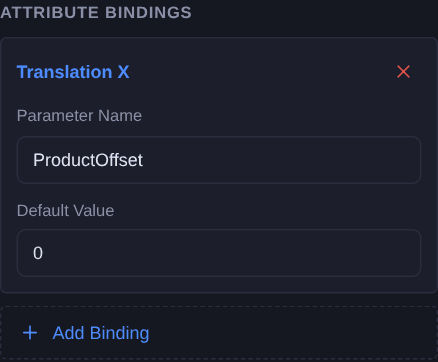
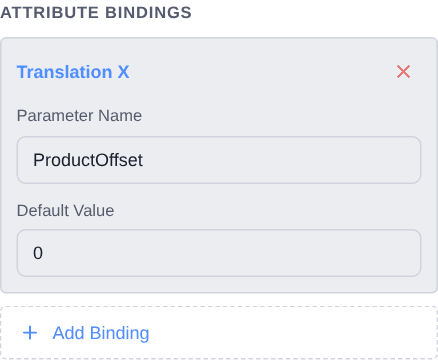
Select the box on the belt and add a Translation X binding named
ProductOffset. The parameter is an offset in drawing units from where the box sits in the graphic, so zero leaves it exactly where it was drawn.Feed it a tracked position and the box travels; feed it a value that advances while the belt runs and it reads as motion.
Check it
Open Simulate and toggle Reverse. The arrows should turn round on the spot — if they jump along the belt, the flip centre is not on the group’s middle.
Then clear Running and leave Reverse set. A grey lamp with the arrows still pointing backwards is the state worth checking, because it is the one a design that mixes the two cannot show at all.
Simulate needs a free account. Everything up to this point does not.
Variations
- Hide the arrows when it is stopped. A Visibility (Boolean) binding on the same group, driven by
Running, means a stopped belt shows no direction at all — the right choice if your operators read arrows as “moving” rather than “configured for”. - Add a status word. The lamp says whether the belt is running; a word beside it says so in your own vocabulary. Add a text element and a Text Content binding and it reads RUN, STOP or whatever your convention is.
- A vertical transport. Use Translation Y and Flip Vertical instead; the design is the same, only the axis changes.
Questions
- Why flip one set of arrows instead of drawing two?
- Because two sets are two things to keep in step, and two visibility dynamics can both be false or both true at once. A flip has exactly one state per bit and nothing to disagree with.
- Which way should the arrows be drawn?
- The way the belt reads when the bit is false. A flip means "mirrored from how this is drawn", so drawing them backwards makes every screen show reverse until someone sets the bit.
- Why keep running and direction separate?
- Because a stopped belt still has a direction it will go when it starts, and that is a state an operator about to press a button cares about. A graphic that mixes them cannot show it.
- What units is the product offset in?
- Drawing units, measured from where the element sits in the graphic — zero leaves it exactly where it was drawn. If your tracked position is in millimetres, scale it wherever the tag is scaled, or use a Custom Attribute binding and do the arithmetic in the expression.